
Deploy gRPC Applications with AWS ALB and WAF on ROSA HCP using Service Mesh
This content is authored by Red Hat experts, but has not yet been tested on every supported configuration. This guide has been validated on OpenShift 4.21. Operator CRD names, API versions, and console paths may differ on other versions.
Organizations deploying gRPC applications on Red Hat OpenShift Service on AWS (ROSA) Hosted Control Plane (HCP) often need to meet security requirements that mandate AWS Web Application Firewall (WAF) protection. However, combining gRPC support with WAF presents a unique challenge: WAF can only be attached to Application Load Balancers (ALB), and configuring ALB to properly handle gRPC traffic requires a specific architectural approach.
This guide demonstrates how to successfully deploy gRPC applications on ROSA HCP with full WAF support using AWS Application Load Balancer with native gRPC protocol support and Red Hat OpenShift Service Mesh (Istio). This architecture works in both AWS Commercial Cloud and AWS GovCloud regions.
Why This Architecture
This architecture is the optimal solution for gRPC on ROSA when WAF is required because it provides:
Native gRPC Support: AWS ALB has supported gRPC natively since 2020, but only when configured with the correct target group protocol version and targeting method.
WAF Integration: ALB supports AWS WAF attachment, providing Layer 7 security for gRPC traffic.
Healthy Target Status: Unlike workarounds that leave targets in an unhealthy state, this approach maintains fully healthy targets, ensuring proper AWS monitoring and alerting.
AWS GovCloud and Commercial Cloud Compatible: This architecture works in both AWS GovCloud regions (where CloudFront is not available) and AWS Commercial Cloud regions, making it a universal solution for organizations operating in either environment.
Production Ready: All components are supported enterprise solutions - AWS ALB, Red Hat OpenShift Service Mesh, and ROSA.
End-to-End HTTP/2: The architecture preserves HTTP/2 protocol characteristics required by gRPC, including trailers, bidirectional streaming, and proper content-type handling.
Architecture Overview
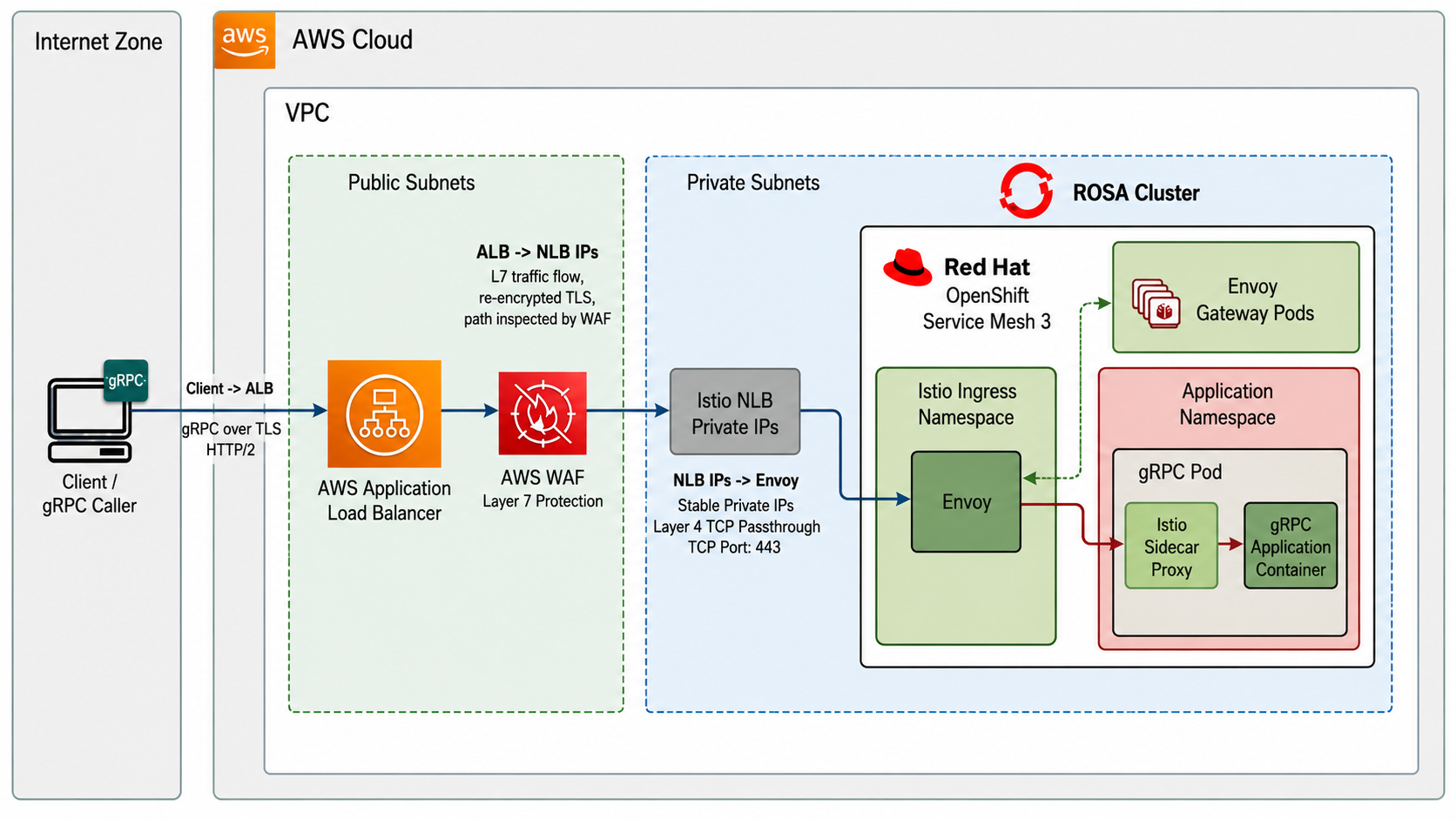
Key Components:
- AWS Application Load Balancer: Terminates client TLS, handles gRPC protocol, can attach WAF
- Istio Service Mesh: Provides Envoy-based ingress with native HTTP/2 and gRPC support
- Network Load Balancer: Created by Istio ingress gateway service, provides stable IP addresses for ALB targeting
- gRPC Application: Your containerized gRPC service running on ROSA
Critical Configuration: The ALB target group uses IP target type pointing to the NLB’s IP addresses with ProtocolVersion: GRPC. This combination enables AWS’s native gRPC support.
Prerequisites
- A ROSA HCP cluster in AWS Commercial Cloud or AWS GovCloud
- AWS CLI configured with appropriate credentials
ocCLI toolrosaCLI tool- Cluster admin access
- A registered domain with Route 53 hosted zone
- AWS Certificate Manager certificate for your domain
Note: This guide uses standard AWS regions in examples. For AWS GovCloud deployments, substitute the appropriate GovCloud region (e.g., us-gov-west-1 or us-gov-east-1) and ensure your ACM certificates are imported into the GovCloud region.
Set environment variables:
Install Red Hat OpenShift Service Mesh
Red Hat OpenShift Service Mesh 3 provides the Envoy proxy layer needed for proper gRPC handling. Service Mesh 3 uses the sailoperator.io API (based on upstream Istio) and provides a simpler installation experience compared to Service Mesh 2.
-
Install the Red Hat OpenShift Service Mesh 3 Operator
-
Wait for the Service Mesh operator to be ready
-
Create the Service Mesh namespaces
Note: The
oc new-projectcommand creates a new namespace and automatically switches your context to it. -
Deploy IstioCNI (required for sidecar injection)
-
Wait for IstioCNI to be ready
-
Deploy the Istio control plane
-
Wait for the control plane to be ready
If the pod is pending due to resource constraints, you may need to scale up your cluster or reduce resource requests.
-
Deploy the ingress gateway
Service Mesh 3 doesn’t automatically create an ingress gateway. Deploy one manually:
Important Configuration Notes:
- The
inject.istio.io/templates: gatewayannotation is critical - it creates a gateway proxy (standalone Envoy) instead of a sidecar proxy. Without this, pods will have 2/2 containers but won’t function as an ingress gateway. - The
istio.io/rev: defaultlabel matches the Istio revision tag. - No ServiceAccount is specified, so the deployment uses the
defaultServiceAccount in the namespace.
- The
-
Create RBAC for the ingress gateway to access TLS secrets
The ingress gateway pods use the
defaultServiceAccount and need permission to read secrets for TLS certificates:Critical: This RBAC configuration is essential. Without it, the ingress gateway pods cannot access the TLS certificates stored in Kubernetes secrets, causing connection resets and unhealthy ALB targets. The istiod logs will show errors like:
"attempted to access unauthorized certificates: default/istio-system is not authorized to read secrets" -
Wait for the ingress gateway to be ready
-
Get the Istio ingress gateway NLB IP addresses
Save these IP addresses - you’ll need them for the ALB target group configuration.
Deploy a Sample gRPC Application
-
Create a namespace for your application
-
Enable automatic sidecar injection for the namespace
Note: Service Mesh 3 uses revision-based injection with the label
istio.io/rev=defaultinstead of the legacyistio-injection=enabledlabel. -
Deploy the gRPC health checking server
This example uses the Kubernetes e2e test image that implements the gRPC health checking protocol:
Note: Since the namespace has the
istio.io/rev=defaultlabel, pods will automatically get the Istio sidecar injected without needing thesidecar.istio.io/inject: "true"annotation. -
Verify the pods are running with Istio sidecars
You should see
2/2in the READY column, indicating both the application container and Istio sidecar are running.
Configure Istio Gateway and VirtualService
-
Create a TLS certificate for the Istio Gateway
For production, import your actual certificate. For testing, create a self-signed certificate:
-
Create the Istio Gateway
Important: The Gateway must be created in the
istio-systemnamespace (where the ingress gateway pods run) for the TLS configuration to be properly applied in Service Mesh 3.Important Configuration Notes:
- Port
8443matches the ingress gateway container port (not the service port 443) - The wildcard host
"*"is required for ALB health checks which don’t send SNI (Server Name Indication) - Use
HTTPSprotocol, notGRPC. Istio’s validation rejectsGRPCprotocol with TLS settings. The ALB handles gRPC protocol negotiation, and Envoy processes it as HTTP/2.
- Port
-
Create VirtualServices for health checks and application traffic
Important: VirtualServices must reference the Gateway using the
namespace/nameformat since the Gateway is in a different namespace.Important Configuration Note: The wildcard host
"*"is required in addition to$GRPC_HOSTNAMEto handle ALB health check requests that don’t include the Host header or SNI.
Configure AWS Application Load Balancer
This is the critical step where we configure ALB with native gRPC support.
-
Get or create an ACM certificate for your domain
Option A: Use an existing validated certificate (faster)
Option B: Request a new certificate
-
Validate the certificate via DNS (only if you requested a new certificate)
Get the DNS validation record:
Add the CNAME record to Route 53:
Wait for certificate validation to complete:
Important: If you created a new hosted zone for a subdomain, ensure NS delegation is set up in the parent domain before continuing. ACM cannot validate the certificate until the DNS records are resolvable.
Expected output:
ISSUED -
Create a security group for the ALB
-
Create the Application Load Balancer
-
Create the gRPC target group with IP targets
This is the key configuration: Use
--target-type ipand--protocol-version GRPC:Why this works:
- Using
--target-type ipallows AWS to acceptGRPCas the protocol version. If you use--target-type albor target an NLB by ARN, AWS forces HTTP2 protocol, which causes protocol mismatch errors. - The
GrpcCode=0-99matcher accepts any valid gRPC status code (0-99). UsingGrpcCode=0(only OK/SERVING) may cause health check failures if the backend returns other codes during startup or under certain conditions. The permissive matcher is recommended for production reliability.
- Using
-
Register the Istio NLB IP addresses as targets
Note: Register all IPs in a single command to avoid race conditions during target health checks.
-
Create HTTPS listener on the ALB
-
Wait for targets to become healthy
You should see all three targets become healthy. If they remain unhealthy, check:
- Istio Gateway has the TLS certificate secret configured
- VirtualService routes exist for the health check path
- Security groups allow traffic between ALB and NLB IPs
Configure DNS
-
Create or find the hosted zone for your domain
-
Create a DNS record pointing to your ALB
cat «EOF > /tmp/dns-record.json { “Changes”: [ { “Action”: “UPSERT”, “ResourceRecordSet”: { “Name”: “$GRPC_HOSTNAME”, “Type”: “CNAME”, “TTL”: 300, “ResourceRecords”: [ { “Value”: “$ALB_DNS” } ] } } ] } EOF
aws route53 change-resource-record-sets
–hosted-zone-id $HOSTED_ZONE_ID
–change-batch file:///tmp/dns-record.json
Test gRPC Connectivity
-
Create the gRPC health check proto definition
-
Test with grpcurl
Expected output:
Note: The
-insecureflag is not needed when using a valid ACM certificate. Use-d '{"service":""}'to pass an empty service name to the health check.
Add AWS WAF (Optional)
Now that gRPC is working, you can add WAF protection:
-
Create a WAF Web ACL
-
Associate WAF with ALB
Note: Wait 30-60 seconds after creating the WAF before associating it. AWS WAFv2 may return
WAFUnavailableEntityExceptionif the services haven’t fully synchronized. -
Verify WAF is attached
-
Test that gRPC still works with WAF enabled
You should still receive
{"status": "SERVING"}, confirming WAF is not blocking legitimate gRPC traffic.
Verification Checklist
Run this comprehensive verification script to confirm your deployment is working correctly:
This creates the script in a file first using a heredoc, then executes it. This avoids quote escaping issues when copy-pasting.
Architecture Deep Dive
Why IP Targets Enable gRPC Protocol
When you create an ALB target group, the combination of target type and protocol version determines what AWS allows:
| Target Type | Allowed Protocol Versions |
|---|---|
| instance | HTTP1, HTTP2 |
| ip | HTTP1, HTTP2, GRPC |
| alb | HTTP1, HTTP2 |
| lambda | (not applicable) |
By using --target-type ip, we unlock the ability to set --protocol-version GRPC, which tells ALB to:
- Preserve gRPC-specific headers (
content-type: application/grpc) - Handle HTTP/2 trailers correctly
- Support bidirectional streaming
- Properly route health checks as gRPC calls
Traffic Flow
-
Client → ALB:
- TLS connection (certificate from ACM)
- ALPN negotiates HTTP/2
- Client sends gRPC request
-
ALB → Istio NLB IPs:
- ALB terminates client TLS
- ALB re-encrypts with target TLS
- Forwards to registered IP targets (10.40.x.x:443)
- Preserves gRPC protocol characteristics
-
NLB → Envoy:
- NLB operates at Layer 4 (TCP passthrough)
- Forwards encrypted traffic to Envoy pods
-
Envoy → Application:
- Envoy terminates TLS (using istio-ingressgateway-certs)
- Istio Gateway and VirtualService route the request
- Forwards to application as plaintext gRPC
Health Check Flow
ALB health checks follow the same path:
- ALB sends:
HTTPS GET /grpc.health.v1.Health/Checkto NLB IPs - Envoy receives and routes via VirtualService
- Application responds with gRPC status code
- ALB checks if
grpc-statusmatches GrpcCode matcher (0-99) - Target marked healthy if response is in range
Troubleshooting
Targets remain unhealthy
Check target group configuration:
Ensure:
ProtocolVersion: GRPCHealthCheckPath: /grpc.health.v1.Health/CheckMatcher: {GrpcCode: "0-99"}
Check Istio configuration:
If you see errors like “attempted to access unauthorized certificates”, ensure the RBAC Role and RoleBinding were created to allow the ingress gateway ServiceAccount to read secrets in the istio-system namespace.
Check connectivity:
gRPC calls timeout
Verify DNS resolution:
Check ALB security group allows traffic:
Check Envoy logs:
HTTP 464 errors
This indicates protocol mismatch. Verify:
- Target group
ProtocolVersionis set toGRPC(not HTTP2) - Target type is
ip(notalb) - Istio Gateway protocol is
HTTPS(notGRPC)
WAF blocking legitimate traffic
Check WAF logs:
Adjust WAF rules as needed for your traffic patterns.
Cleanup
To remove all resources created in this guide:
-
Disassociate WAF (if configured)
-
Delete ALB and target group
-
Delete security group
-
Delete DNS record
-
Delete OpenShift resources
-
Uninstall Service Mesh 3 Operator (optional)
Critical Configuration Summary
This deployment requires several specific configurations that are not obvious and are critical for success:
1. Gateway Proxy Injection (Not Sidecar)
The ingress gateway deployment must use the inject.istio.io/templates: gateway annotation. Without this, pods will have sidecar proxies (2/2 containers) instead of gateway proxies and will not function as an ingress gateway.
2. RBAC for TLS Certificate Access
The ingress gateway pods use the default ServiceAccount and require explicit RBAC permissions to read TLS secrets. Without the Role and RoleBinding:
- istiod logs will show:
"attempted to access unauthorized certificates" - TLS handshake will fail
- Connection will reset
- ALB targets will remain unhealthy
3. Wildcard Host for Health Checks
Both the Gateway and VirtualService must include the wildcard host "*" in addition to the specific hostname. ALB health checks do not send SNI (Server Name Indication) or Host headers, so without the wildcard, health checks fail even though the configuration looks correct.
4. Port 8443 in Gateway Configuration
The Gateway port.number must be 8443 (the container port) not 443 (the service port). Using 443 causes routing failures.
5. GrpcCode=0-99 Health Check Matcher
Use GrpcCode=0-99 instead of GrpcCode=0 for production reliability. The permissive matcher accepts any valid gRPC status code, preventing health check failures during startup or when backends return non-zero status codes under normal operation.
6. WAF Association Timing
After creating a WAF Web ACL, wait 30-60 seconds before associating it with the ALB. Immediate association may fail with WAFUnavailableEntityException due to AWS service synchronization delays.
Summary
This architecture provides a production-ready solution for deploying gRPC applications on ROSA HCP with full WAF protection in both AWS Commercial Cloud and AWS GovCloud environments. By using AWS ALB’s native gRPC support (via IP target type and GRPC protocol version) combined with Istio Service Mesh’s Envoy ingress, you get:
- ✅ Full gRPC protocol support (HTTP/2, trailers, bidirectional streaming)
- ✅ AWS WAF integration for Layer 7 security
- ✅ Healthy target status for proper monitoring
- ✅ AWS GovCloud and Commercial Cloud compatibility
- ✅ Enterprise support for all components
The key insight is that ALB’s gRPC support requires IP-based targeting rather than NLB-to-NLB architecture, and Envoy provides the HTTP/2-aware ingress layer that traditional HAProxy-based routes cannot deliver. This universal approach works across all AWS environments, making it ideal for organizations operating in regulated industries that require GovCloud while also maintaining commercial cloud deployments.
Note: While this guide is specific to ROSA HCP, the architecture also works on ROSA Classic with identical Service Mesh 3 configuration.
